
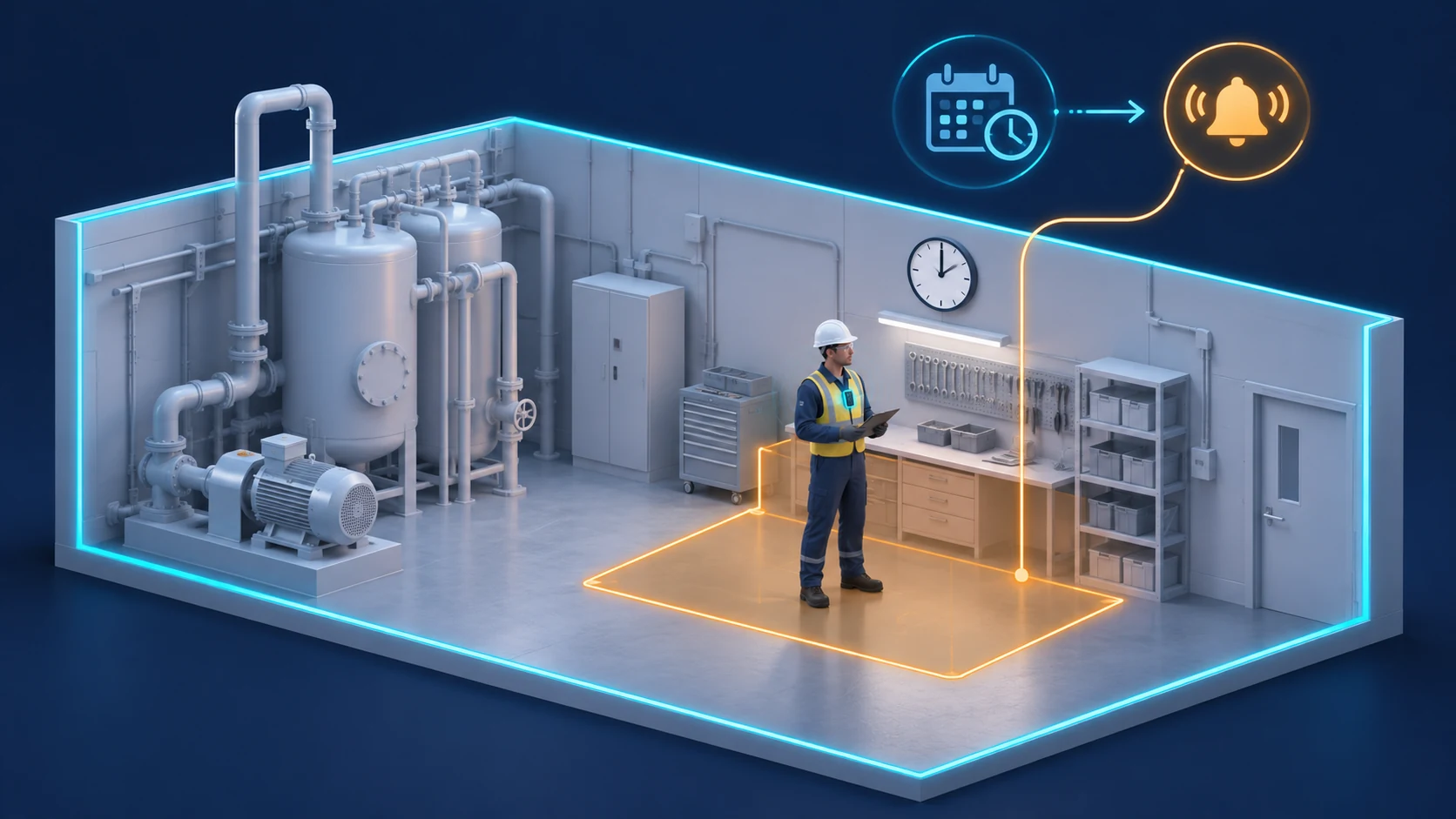
Your maintenance crew is cleared to work in the plant room until 12:00. At 12:01, you need to know whether anyone is still there, who owns the follow-up and where to send a supervisor.
A badge swipe records a checkpoint event. Location tracking adds the worker's reported position after entry. Time-gated geofencing connects that position to the hours and zones defined for the job.
Traxmate supports geofence rules during specific hours, together with presence, entry, exit and inactivity triggers. For contractor operations, those tools help your team check whether activity matches the planned work window.
Set the work window and the zone
Illustration, not the real user interface
Start with the contractor's task: the room or work area, the permitted route and the scheduled finish. Draw a boundary that follows the space you actually need to monitor.
Traxmate uses polygon geofences on maps and floor plans. A boundary can follow a room or a restricted area, while a rule determines which reported movements or presence conditions should trigger an event.
Consider a maintenance window of 08:00 to 12:00. Configure an out-of-hours presence rule for the work zone, then test that a contractor already inside at the cutoff produces the intended alert. An entry-only rule can miss someone who entered earlier and stayed.
Decide how approved overtime changes the schedule and who can make that change. Keep the tracker assignment and the work authorization consistent when crews or shifts change.
The geofence monitors location conditions. Physical entry permissions and door locking depend on your access control system and the connections configured for the site.
Choose tracking that fits the site

Illustration, not the real user interface
A contractor may cross an outdoor yard, enter a workshop and climb to a mechanical floor during one job. Your tracking plan needs to cover each part of that route.
The Traxmate platform supports GNSS and Cell ID for outdoor positioning, with Wi-Fi and BLE used for indoor positioning. The available methods depend on the device and the signals it can collect.
Choose a wearable tracker or phone configuration that suits the work. Check how it is carried, its battery requirements and the network that returns position updates. LoRaWAN is one supported connectivity option; battery life still depends on the hardware, reporting interval and radio conditions.
Walk the route before you rely on the rule. Test entrances, stairs, adjacent rooms and the boundary of the restricted zone. Agree on the position update interval and how operators should treat an old or missing position.
A useful map also needs a verified building layout. Traxmate Live Maps creates interactive 2D and 3D building models from floor plans. The model gives an alert spatial context; achievable room and floor accuracy depends on the positioning setup.
Give each alarm a response

Illustration, not the real user interface
When an out-of-hours presence alert arrives, the operator needs a practical next action: contact the contractor, check an approved extension or send a supervisor to the reported area.
Traxmate's Milestone XProtect plugin brings live positions and movement history into Smart Client alongside video. Geofence events and personnel alarms can feed the configured alarm workflow, so operators can acknowledge and investigate them in the environment they already use.
Geofence-triggered video workflows can bring relevant camera views into the response. Verify camera coverage and alarm-to-camera mapping during commissioning.
Where response teams use Axis body worn cameras, confirm the positioning method for each area. Axis documents native GNSS location for outdoor use. Indoor tracking requires a suitable indoor positioning setup; any BLE scanning must come from a separate compatible tracker carried by the guard.
Traxmate also supports device SOS signals and inactivity rules. Confirm which signals the chosen tracker supplies and how each alarm is escalated. A stationary tracker is a reason to check on someone, rather than proof of an injury.
Make contractor handover part of the workflow
At issue, record which tracker belongs to which contractor and work assignment. Check the battery, explain the monitored zones and demonstrate the help button when the device has one.
At return, reconcile the tracker with the person who carried it. Close the assignment and check unresolved alerts before the device goes to the next worker.
If your contractor management system owns shift times, agree how those times reach the alert rules. Traxmate has APIs for connecting external systems; the identity mapping, schedule updates and exception handling need to be designed and tested for your deployment.
Tracking history can support a review of reported visits and shift exceptions. Decide who reviews it and what follow-up is appropriate. A location record alone does not establish that a maintenance task was completed.
Pilot one work area first
Choose a bounded maintenance area and run the pilot with the people who will operate it. Include an ordinary shift, approved overtime and a worker remaining in the zone after the cutoff.
Also test a tracker left behind, a low battery and a lost connection. These checks show whether the team can distinguish a location alert from a device problem and still follow the agreed procedure.
During industrial turnarounds, the same approach can help teams monitor temporary work zones. Tracking can also contribute to evacuation accountability, with mustering procedures accounting for missing devices and stale positions.
Bring a floor plan, a representative contractor schedule and your response procedure to a Traxmate demo. Use them to assess the zones, devices and security connections your site needs.